The Essential Guide to Finding and Changing the Default Password for Your Router
Routers are the backbone of home and small business networks, silently enabling our connections to the internet. Yet, despite their importance, many users leave a critical vulnerability wide open: the default router password. Manufacturers ship routers with generic, predictable login credentials—often a simple "admin" or "password"—that are widely known and easily found online. According to a 2023 study by Comparitech, over 70% of surveyed home routers were using default or weak passwords, making them prime targets for cybercriminals.
Changing your router’s default password is one of the simplest, most effective steps you can take to protect your network and personal information. This comprehensive guide walks you through how to find your router’s default credentials, why they matter, how to change them, and what to do if you run into trouble.
Why Default Router Passwords Are a Major Security Risk
Leaving your router’s default password unchanged is like locking your front door but leaving the key under the doormat. Cybersecurity experts warn that default credentials are a primary target for attackers. In fact, the infamous Mirai botnet attack of 2016 exploited thousands of routers worldwide by systematically trying common default username and password combinations.
.png)
Here are some startling facts:
- In a 2022 Kaspersky survey, 28% of respondents admitted they had never changed their router’s default password. - Default passwords for popular routers are published on hundreds of websites, making them easily accessible to hackers. - The FBI and FTC have both issued public advisories recommending that all users change their default router credentials.Why do manufacturers use default passwords? Simply for convenience, to ensure that users can access the device upon first setup. However, this convenience quickly becomes a liability if the password isn’t changed.
How to Find Your Router’s Default Password
If you’ve never changed your router's login credentials, it’s likely still set to the factory default. There are several ways to find these details:
1. $1: Most routers have a label on the underside or back of the device. This label typically lists the default username and password, the router’s model number, and sometimes the default WiFi SSID. 2. $1: The printed or digital manual that came with your router will list the default login credentials. If you don’t have the manual, most manufacturers publish them online. 3. $1: Nearly all major router brands maintain a database of default credentials by model number on their support sites. 4. $1: There are comprehensive lists of default router passwords available on sites like routerpasswords.com and cirt.net.Below is a comparison table showing default login credentials for several popular router brands:
| Brand | Typical Default Username | Typical Default Password | Support Website |
|---|---|---|---|
| Netgear | admin | password | netgear.com/support |
| TP-Link | admin | admin | tp-link.com/support |
| Linksys | admin | admin | linksys.com/support |
| ASUS | admin | admin | asus.com/support |
| D-Link | admin | (blank) | dlink.com/support |
| Belkin | admin | (blank) | belkin.com/support |
If you’ve changed your password in the past and forgotten it, you may need to reset the router to factory settings, which will restore the default credentials.
Step-by-Step: How to Change Your Router’s Default Password
Changing your router password is straightforward, but the exact steps may vary depending on the brand and model. Here’s a universal approach:
1. $1: Use a computer, tablet, or smartphone that’s connected to the router via WiFi or Ethernet. 2. $1: Open a web browser and enter your router’s IP address in the address bar. Common default IPs include 192.168.1.1, 192.168.0.1, or 10.0.0.1. Your router’s label or manual will specify the correct address. 3. $1: Enter the default username and password. If you’ve changed these previously, use the updated credentials. 4. $1: Navigate to the "Administration," "Management," or "System" section of the admin panel. Look for options labeled "Password," "Login," or "Router Password." 5. $1: Choose a password that’s at least 12 characters, combining uppercase and lowercase letters, numbers, and symbols. 6. $1: Click "Save" or "Apply." The router may log you out or restart.Pro Tip: Do not use the same password as your WiFi network or any other service. Write down or securely store your new password.
What to Do If You Can’t Access Your Router
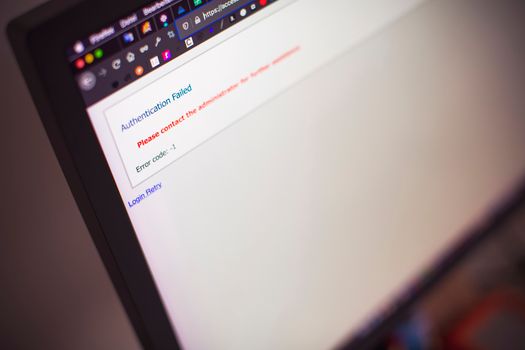
Sometimes, you may find yourself locked out of your router’s admin panel. Common reasons include forgetting the password, a changed IP address, or a misconfigured device. Here’s how to regain access:
1. $1: Use the command prompt (Windows: type "cmd" and enter "ipconfig") or system preferences (Mac: Network > Advanced > TCP/IP) to find your router’s gateway address. 2. $1: Ensure you’re using the correct default username and password for your model. 3. $1: Most routers have a small reset button. Hold it down for 10-15 seconds with a paperclip while the device is powered on. Caution: This will erase all custom settings, including WiFi names and passwords. 4. $1: If all else fails, reach out to your router manufacturer’s support team for guidance.Tips for Creating and Managing a Secure Router Password
A strong router password is your first line of defense. According to the National Institute of Standards and Technology (NIST), passwords should be long, unpredictable, and unique. Here’s how to create and manage yours:
- $1: Aim for at least 12 characters. Mix upper and lowercase letters, numbers, and special symbols. - $1: Don’t use your name, address, or simple words ("password123"). - $1: Combine unrelated words or a memorable phrase, like "Ski$Moon2Dog!River2024". - $1: Consider using a reputable password manager such as Bitwarden or LastPass to store your router credentials securely. - $1: Change your router password every 6-12 months, or immediately if you suspect any security breach.Remember, your router password is not the same as your WiFi password. Changing one does not automatically update the other.
Beyond the Password: Additional Router Security Measures
While changing your default password is essential, comprehensive router security involves several steps. Here are additional actions to maximize protection:
1. $1: Manufacturers release updates to patch vulnerabilities. Check for updates at least twice a year. 2. $1: Unless necessary, turn off remote access to your router’s admin panel. 3. $1: Ensure your WiFi uses the latest encryption standards. 4. $1: Restrict admin interface access to wired connections or specific devices. 5. $1: Regularly review the list of devices connected to your network and remove any you don’t recognize.According to Cisco’s 2023 Annual Security Report, 41% of home network attacks involved routers with outdated firmware or unchanged default settings. Taking a few extra minutes to secure your router can drastically reduce your vulnerability.
Final Thoughts: Taking Control of Your Router Security
Your router’s default password is not just a technicality—it’s a critical security setting that should never be overlooked. With millions of routers worldwide still using credentials like "admin/admin," cybercriminals continue to exploit these easy targets. Taking just a few minutes to find and update your router’s default password can protect your personal data, devices, and even your privacy from prying eyes.
By following the steps outlined in this guide, you’re not only securing your own home but also contributing to a safer internet ecosystem. Don’t wait—check your router’s password today and make this best practice a part of your regular home network maintenance.