When USB devices malfunction, it disrupts productivity and can be a source of significant frustration. However, by employing a systematic approach to troubleshooting, you can often resolve these issues without needing professional help. Here’s a comprehensive guide to diagnosing and fixing common USB device problems, ensuring your devices function smoothly and reliably.
- Inspect Physical Connections
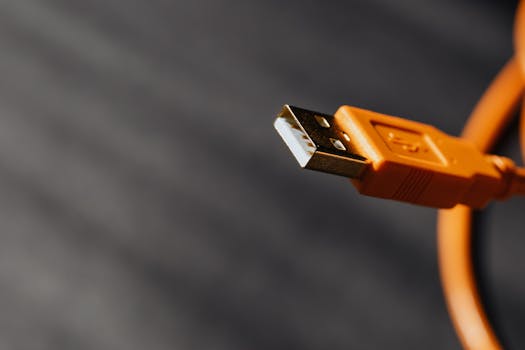
A loose or damaged USB cable or port is often the culprit behind connectivity issues. Begin by:
- Disconnecting and then firmly reconnecting the USB device.
- Avoiding USB hubs initially, as they can introduce complications; connect the device directly to your computer’s USB port.
- Experiment with Different USB Ports
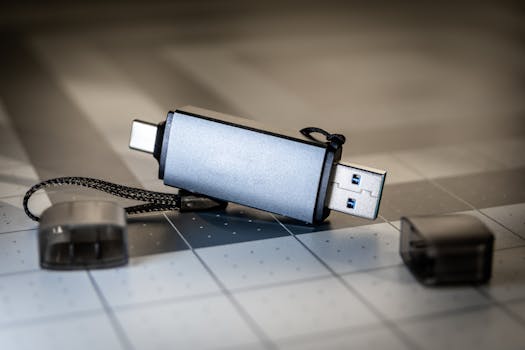
Faulty USB ports can mislead you into thinking your device is at fault. Test the device in multiple ports on your computer to identify if the issue is port-related. If the device operates correctly in a new port, the original port may require professional attention.
.png)
- Restart Your Computer
Rebooting your computer can resolve a plethora of issues by refreshing the system’s operations and potentially fixing software glitches that affect USB functionality.
- Update Device Drivers
Drivers facilitate communication between your system and connected devices. Outdated or corrupt drivers can lead to operational issues:
- Access Device Manager by right-clicking the Start menu.
- Locate and right-click your USB device, choose "Update Driver," and select the automatic search for updated driver software.
- Follow any prompts to install necessary updates.
- Identify and Resolve Hardware Conflicts
Hardware conflicts can disrupt device functionality:
- In Device Manager, devices marked with a yellow exclamation point signify conflicts.
- Right-click the conflicting device, select "Properties," and explore the details to resolve the issue, often by updating drivers or removing conflicting devices.
- Utilize Windows USB Troubleshooter
Microsoft provides a USB Troubleshooter for Windows users, designed to automatically detect and resolve USB issues:
- Download and run the troubleshooter from the Microsoft support website, following the guided instructions.
- Adjust Power Management Settings
Windows’ power settings might be turning off USB devices to save power, leading to connectivity issues:
- In Device Manager, right-click "USB Root Hub" and select "Properties."
- Navigate to the "Power Management" tab and uncheck "Allow the computer to turn off this device to save power."
- Format the USB Device
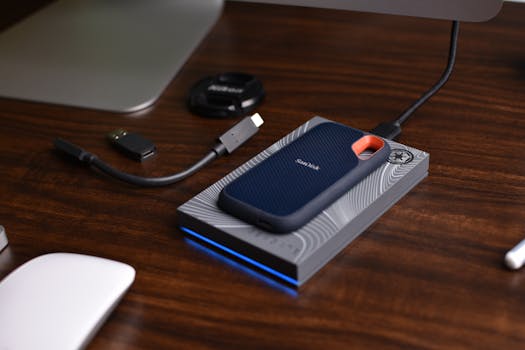
Corruption within storage devices like USB flash drives can often be rectified by formatting:
- Backup any essential data.
- In Windows, open ‘This PC,’ right-click the USB drive, select "Format," choose the file system, and click "Start."
- Test the Device on Another Computer
If all else fails, testing the device on a different computer can help determine if the issue is with the device or your computer’s hardware or settings.
These steps will resolve most common USB device issues. If problems persist, it may be wise to consult a professional technician or consider replacing the device. Regularly updating your system and performing routine maintenance can help avert many USB-related issues before they arise.