Setting up WiFi in a small apartment may seem straightforward, but achieving consistently fast, reliable, and interference-free internet can be surprisingly challenging. Urban living often means dense environments packed with electronic devices, neighboring networks, and architectural quirks that can affect your signal quality. If you’re seeking to maximize your WiFi performance in a compact space, you need more than just plugging in a router. This article covers practical, often-overlooked strategies and technical insights to ensure your small apartment WiFi works flawlessly, supports all your devices, and keeps you connected—whether you’re streaming, gaming, or working from home.
Understanding Unique WiFi Challenges in Small Apartments
Small apartments present a unique set of WiFi challenges, despite their size. Many residents assume that covering a smaller area is easier, but several factors complicate wireless performance:
- $1 According to a 2023 Ericsson report, the average urban household now has 15-20 connected devices, including smart TVs, phones, tablets, and IoT gadgets. - $1 In apartment buildings, your WiFi must compete with dozens of other networks. A 2022 study by the Wireless Broadband Alliance found that interference from overlapping signals can reduce speeds by up to 55%. - $1 Even in a compact space, thick walls, metal appliances, and mirrors can disrupt signal paths.Recognizing these challenges is the first step toward an effective WiFi setup. The next sections provide actionable tips tailored specifically for small apartment living.
.png)
Choosing the Right Router for Apartment Spaces
The type of router you choose directly affects your network’s performance. Not all routers are created equal, and some features are more beneficial in a small, crowded environment.
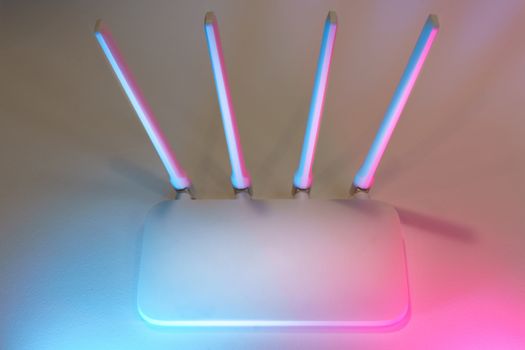
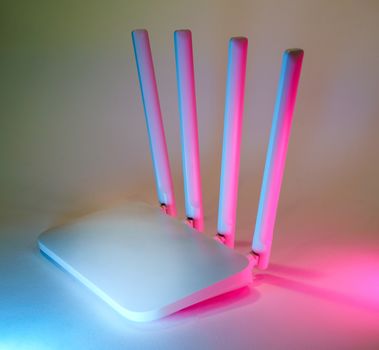
1. $1 Modern routers offer dual-band (2.4GHz and 5GHz) or even tri-band frequencies, allowing devices to connect on less congested channels. The 5GHz band, in particular, is less prone to interference and offers higher speeds over short distances—ideal for small apartments. 2. $1 Routers with beamforming actively direct WiFi signals toward connected devices rather than broadcasting uniformly. This feature, available in many 802.11ac and 802.11ax (WiFi 6) models, can boost coverage and speed in tight environments. 3. $1 Look for routers with adjustable antennas, which help you fine-tune signal direction, or flat, wall-mountable models that fit small spaces. 4. $1 WiFi 6 (802.11ax) routers handle more devices efficiently. According to Intel, WiFi 6 can deliver up to 40% faster average speeds than WiFi 5, especially in device-dense settings.Here’s a quick comparison of key router features for small apartments:
| Feature | Benefit | Recommended For |
|---|---|---|
| Dual-Band | Reduces interference, supports more devices | Basic apartment use |
| Tri-Band | Even less congestion, ideal for heavy users | Streaming, gaming, smart homes |
| Beamforming | Improves signal focus and range | High-density apartments |
| WiFi 6 | Handles multiple devices, faster speeds | Device-heavy households |
When selecting a router, balance advanced features with your actual needs—overpaying for a gaming router in a studio apartment may be unnecessary, but underestimating your device load can result in slowdowns.
Optimizing Channel Selection and Frequency Bands
In apartment buildings, crowded airwaves are a major source of WiFi frustration. Most routers default to automatic channel selection, but manually choosing the optimal channel can reduce interference dramatically.
- $1 This band has only 3 non-overlapping channels (1, 6, and 11). If multiple networks in your building use the same channel, congestion occurs. Free tools like WiFi Analyzer (available for Android and Windows) can scan your area and recommend the least crowded channel. - $1 This band offers 23 non-overlapping channels, making it far less susceptible to interference. For streaming, gaming, or work, prioritize 5GHz connections whenever possible. - $1 Many modern routers support Dynamic Frequency Selection (DFS) channels in the 5GHz range. These channels are less commonly used by consumer devices, further reducing interference—though some older devices may not support them.For best results, periodically check and update your router’s channel settings, especially if you notice new networks appearing or performance declining.
Device Placement and Minimizing Interference Sources
It’s tempting to tuck your router behind the TV or in a closet, but placement is crucial—even in small spaces. The goal is to provide a clear line of sight to as many devices as possible while avoiding major sources of signal disruption.
- $1 Place your router near the center of your apartment, elevated on a shelf or table. A study by Ofcom (UK) revealed that central placement can boost signal strength by up to 30% compared to a far-corner setup. - $1 Keep your router away from large metal appliances, mirrors, or thick concrete walls. Even a microwave in use can degrade WiFi signals on the 2.4GHz band. - $1 Don’t stash the router in a cabinet. Enclosed spaces can reduce signal effectiveness by up to 50%, according to TP-Link’s internal testing. - $1 If your router has external antennas, position them at different angles (e.g., one vertically, one horizontally) to help signals penetrate walls and reach devices at various heights. - $1 Electronic clutter can cause “electromagnetic noise.” Unplug unused electronics, and keep power strips and routers separated by at least a few feet.Managing Device Connectivity and Network Traffic
With multiple devices competing for bandwidth, it's smart to manage connections proactively—especially in a small apartment where every megabit counts.
- $1 Isolate smart appliances, IoT devices, and guests onto a separate network. This not only improves security but can prevent bandwidth hogging. - $1 Many routers offer QoS features that let you prioritize traffic (e.g., video calls over downloads). For example, during Zoom meetings, you can ensure smooth video by assigning higher priority to your laptop or phone. - $1 Devices often run automatic updates or cloud syncs in the background. Disable or schedule these tasks during off-peak hours. - $1 Use your router’s management app or a third-party tool to identify which devices are using the most bandwidth. In a study by Cisco, streaming video accounts for more than 60% of home internet usage—if slowdowns occur, check if someone’s binging 4K movies. - $1 Keep your router’s firmware up-to-date to benefit from performance improvements and bug fixes released by the manufacturer.Advanced Tips: Leveraging Mesh Systems and Wired Connections
While a single, well-placed router often suffices for small apartments, certain circumstances might warrant advanced solutions:
- $1 If your apartment has unusual layouts, thick walls, or multiple floors (e.g., a loft), a mesh system can eliminate dead zones. Unlike extenders, mesh nodes create a seamless network, allowing devices to roam without disconnects. - $1 If possible, run an Ethernet cable from your router to a work desk, gaming console, or streaming box. Wired connections offer consistent speeds and zero wireless interference; Gigabit Ethernet supports up to 1000 Mbps. - $1 In older buildings where running cable isn’t practical, powerline adapters use your apartment’s electrical wiring to transmit data. Speeds can vary, but modern adapters reach up to 600 Mbps—plenty for HD streaming. - $1 While often unnecessary in small apartments, a compact extender can help in L-shaped units or apartments with thick internal walls.Smart Apartment WiFi Setup: Real-World Examples
To bring these strategies to life, here are examples of how different apartment dwellers can optimize their WiFi:
- $1 A single dual-band WiFi 6 router, centrally located on a high bookshelf, handles 12 devices (laptop, smart TV, phone, and smart lights) with no dead zones. Channel selection ensures minimal interference from 14 neighboring networks. - $1 In a 700 sq. ft. apartment with thick concrete walls, the resident uses a mesh WiFi system with two nodes—one in the living room, one in the bedroom—to maintain full bars everywhere. A desktop PC is connected via Ethernet for stable Zoom meetings. - $1 Four roommates use a tri-band router with QoS enabled. The router’s guest network isolates smart devices, while each student’s laptop is prioritized for online classes. Regular firmware updates prevent slowdowns during peak usage.These setups demonstrate that, with a bit of planning and the right technology, even the most challenging small apartments can enjoy fast, reliable wireless coverage.
Getting the Most from Your Small Apartment WiFi: Key Takeaways
Effective WiFi setup in a small apartment requires more than just plugging in a router. By choosing the right hardware, optimizing channels, positioning your router thoughtfully, managing device traffic, and considering advanced solutions, you can ensure strong, stable, and interference-free connectivity, even in dense urban environments. Remember, small spaces come with big challenges—but also unique opportunities to fine-tune your network for the best possible experience. Regularly reassess your setup as your needs evolve, and you’ll always stay connected.