Staying connected is essential in today’s digital world, and your home WiFi network is at the heart of every device and online activity. But have you ever wondered how secure your WiFi really is—or what you should do if you think someone else is using your connection? Whether you’re setting up a new router, want to kick freeloaders off your network, or just want peace of mind, knowing how to find and change your WiFi password is crucial. This step-by-step guide walks you through everything you need to know, from locating your current WiFi password to changing it for better security.
Why Your WiFi Network Password Matters
Your WiFi password is more than just an inconvenient hurdle standing between you and Instagram—it’s the first line of defense protecting your personal data, smart devices, and private communications from outsiders. According to a 2023 report by Statista, over 92% of U.S. households rely on WiFi for internet access. With so many devices connected, leaving your network password weak, unchanged, or exposed can invite unauthorized users or even cyberattacks.
Changing your WiFi password regularly is recommended by cybersecurity experts. Not only does it help evict unwanted guests, but it also minimizes the risk if your password leaks through phishing scams, data breaches, or shoulder-surfing. Plus, when you move into a new home or receive a router from your internet provider, you’ll want to ensure your network password isn’t still set to a default value that’s easy to guess.
.png)
How to Find Your Current WiFi Network Password
Before you change your WiFi password, you may need to find your current one—especially if you want to connect a new device or share the network with a trusted guest. Here are the main methods to retrieve your existing WiFi password:
1. $1 Most routers come with a default network name (SSID) and password printed on a sticker attached to the device. If you haven’t changed these since setup, look for this sticker, typically found on the bottom or back of the router. 2. $1 If you have a Windows PC already connected to the WiFi network, you can find the password: - Go to Control Panel > Network and Sharing Center > Change adapter settings. - Right-click your WiFi connection, select Status > Wireless Properties. - Go to the Security tab and check “Show characters” to reveal the password. 3. $1 On a Mac, the Keychain Access utility stores WiFi passwords: - Open Applications > Utilities > Keychain Access. - Search for your WiFi network name. - Double-click the entry, check “Show Password,” and enter your Mac’s administrator password. 4. $1 Advanced users can log into the router’s web interface: - Open a browser and enter the router’s IP address (often 192.168.1.1 or 192.168.0.1). - Log in with your admin credentials (often found in your router manual or on the device). - Navigate to Wireless settings to view the current password.Always remember, if you’ve changed the default password before and forgotten it, you may need to reset your router to factory settings—just note that this will erase all your custom settings.
Step-by-Step Guide: How to Change Your WiFi Network Password
Changing your WiFi password isn’t complicated, but the steps can vary depending on your router’s brand and model. Here’s a general process that works for most modern routers:
1. $1 Ensure you’re connected to your WiFi network (or use an Ethernet cable for best results). 2. $1 - Open a web browser and type your router’s IP address into the address bar. Common addresses include: - 192.168.1.1 - 192.168.0.1 - 10.0.0.1 - If unsure, check your router's manual or run “ipconfig” in Command Prompt (look for the “Default Gateway”). 3. $1 - Enter the username and password (default is often “admin”/“admin” or “admin”/“password”). - If you’ve changed these and forgotten, you may need to reset your router. 4. $1 - Find the menu labeled Wireless, WiFi, or WLAN. - Look for a section called Wireless Security or similar. 5. $1 - Enter a new SSID (network name) if desired. - Set a strong new password (at least 12 characters, mixing letters, numbers, and symbols). - Save your changes. 6. $1 - Some routers restart automatically, others may require manual reboot. 7. $1 - After changing the password, all your devices will be disconnected. - Reconnect each device using the new password.Best Practices for Creating a Strong WiFi Password
Not all passwords are created equal. According to NordPass, “12345678” and “password” remain among the most commonly used—and hacked—passwords in the world. To prevent unauthorized access, follow these guidelines:
- $1 Use at least 12 characters, including uppercase and lowercase letters, numbers, and special characters. - $1 Don’t use names, birthdays, or easy-to-guess words. - $1 Avoid passwords like “qwerty,” “letmein,” or “admin123.” - $1 Don’t reuse passwords from other accounts or services. - $1 Update your password every 6-12 months or if you suspect it’s been shared or compromised.Here’s a quick comparison of weak vs. strong WiFi passwords:
| Password Example | Type | Estimated Crack Time |
|---|---|---|
| password123 | Weak | Less than 1 second |
| mydogname | Weak | Less than 1 second |
| Winter2024! | Moderate | 2 hours |
| G7!f3#xV2lZp | Strong | Over 200 years |
Common Router Brands: Where to Find and Change Your WiFi Password
While most routers share similar interfaces, each brand has its quirks. Here’s a quick overview for the most popular home router brands in the U.S.:
- $1 - Default IP: 192.168.1.1 or routerlogin.net - Login with admin credentials, navigate to Wireless > Security Options. - $1 - Default IP: 192.168.0.1 or tplinkwifi.net - Go to Wireless > Wireless Security. - $1 - Default IP: 192.168.1.1 - Settings found under Wireless > Wireless Settings. - $1 - Default IP: 192.168.1.1 - Wireless settings under Wireless > General. - $1 - Use the Xfinity app or 10.0.0.1 in a browser - Go to Gateway > Connection > WiFi.Many modern routers also offer mobile apps (like TP-Link’s Tether or Netgear’s Nighthawk) for easier password changes without using a laptop or desktop.
Troubleshooting: What to Do If You Can’t Access Your Router
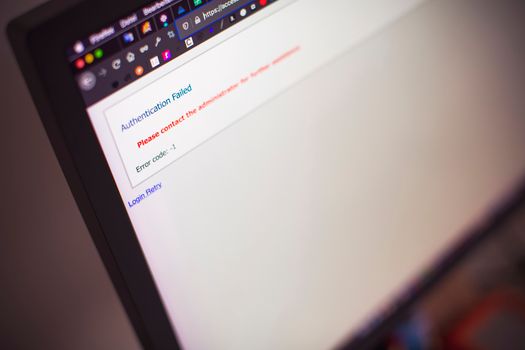
Sometimes, accessing your router’s admin interface isn’t straightforward. Here are common issues and solutions:
- $1 Most routers have a reset button. Hold it down for 10 seconds to restore factory settings. Note: this erases all custom settings. - $1 On Windows: Open Command Prompt, type “ipconfig” and look for “Default Gateway.” On Mac: Go to System Preferences > Network > Advanced > TCP/IP. - $1 - Ensure you’re connected directly to the router (preferably via Ethernet). - Disable VPNs or firewalls temporarily. - Try a different browser or device. - $1 - Check for firmware updates on your router’s support page. - Try restarting the router after making changes.Keeping your router’s firmware updated is another important step—manufacturers regularly release patches that fix bugs and enhance security.
Final Thoughts: Keeping Your WiFi Secure with Regular Password Changes
Changing your WiFi password isn’t just about keeping out neighbors or unwanted guests—it’s a fundamental part of digital hygiene. A strong, unique password not only keeps your internet speed fast by limiting access to trusted users, but also helps protect sensitive data from cybercriminals. According to a 2022 Consumer Reports survey, nearly 30% of people have never changed their WiFi password—don’t let your household be part of that statistic!
Make it a habit to review your network security every few months, update your password as needed, and educate other household members about the importance of keeping these credentials private. Your WiFi network is the gateway to your digital life—treat it with care.