Optimizing USB Performance for Gaming: Maximizing Every Millisecond
In the competitive arena of gaming, even the smallest delay can impact the outcome of a battle. That's why optimizing every component of your gaming setup, including USB devices, can give you a critical edge. Here’s a comprehensive guide on how to enhance USB performance for an optimal gaming experience.
Understanding USB Standards and Speeds
.png)
Firstly, familiarize yourself with the different USB standards. USB (Universal Serial Bus) technology has evolved across several versions, with USB 1.1 at the slower end and USB 4 as the newest, offering high transfer rates. For gamers, using USB 3.0 or later is advisable as these versions support higher data transfer speeds, essential for minimizing latency and ensuring smooth game play.
Selecting the Right USB Port
Identify and use the right USB ports on your computer. Typically, USB 3.0 ports are marked with a blue interior. These ports are designed for higher data throughput compared to USB 2.0 ports, making them ideal for high-speed gaming devices like mice and keyboards.
Updating USB Drivers
Keep your USB drivers up to date. Drivers facilitate communication between the operating system and the USB device. Updated drivers ensure this communication is efficient, enhancing device responsiveness. Check the device manufacturer's website or use your operating system’s device manager to update your drivers.
Choosing Quality Cables and Optimal Length
Invest in high-quality, shielded USB cables to minimize signal degradation and electromagnetic interference, which can affect performance. Additionally, shorter cables are preferable as they tend to have less signal degradation than longer ones. Ensure the cable length suits your setup without excess slack.
Configuring Power Management Settings
Adjust your computer’s power settings. Default settings might allow the system to turn off USB ports to save power, adversely affecting connected devices during gaming. Modify these settings to keep USB ports powered during gaming sessions to prevent any performance hiccups.
Optimizing External Storage Devices
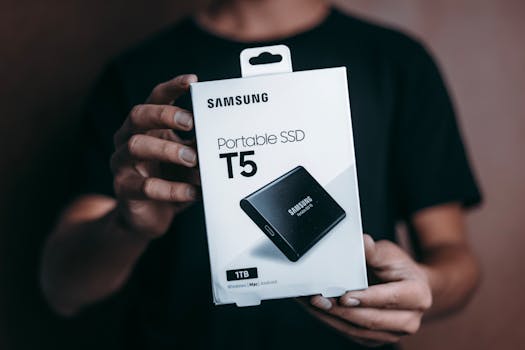
If you use external USB storage devices (like SSDs or HDDs) for gaming, ensure they are formatted correctly (e.g., NTFS for Windows) and that the partition alignment is optimized to boost read and write speeds. This reduces load times and allows for quicker in-game asset streaming.
Using a Dedicated USB Gaming Hub
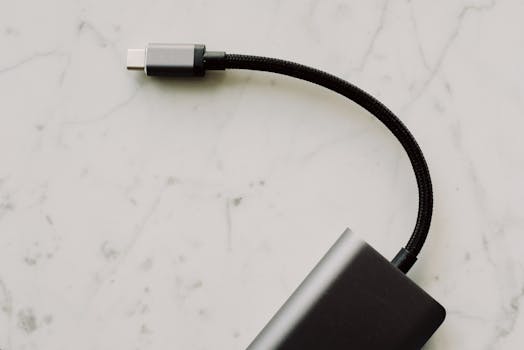
Consider a dedicated USB hub for gaming. These hubs are tailored to manage multiple connections efficiently and are optimized for low latency and high data transfer speeds. Features like individual power switches and LED indicators help manage connections effectively and add a touch of style to your setup.
Regular Maintenance
Maintain your USB ports and devices. Dust and debris can accumulate, leading to poor connections. Regularly clean your USB ports and plugs to ensure clear, uninterrupted connections. Additionally, use software tools to diagnose and resolve USB port issues.
Conclusion
Optimizing USB performance is crucial for a seamless and responsive gaming experience. By selecting the right hardware, updating drivers, managing system settings, and performing regular maintenance, you can ensure that your USB-connected devices operate at peak efficiency. Remember, in gaming, every millisecond can be the difference between victory and defeat. Equip yourself with the best USB setup to gain that competitive edge.